You want to use your own tracks when playing OutRun 2 SP ? I understand, this is the way ! Despite the original tracks are the root, I'm not an extremist so I like to change a bit sometimes and it's very easy to switch from a music pack to another so ... Let's see how to do that.
Here are the actions to do
- Select you tracks
- Convert them in WAV format
- Optional : create an extract of each
- Optional : make your tracks longer (5 min each)
- Convert each one in ADX file format
- Rename the files correctly
- Switch from pack to pack
- Bonus trick
1 - Select you tracks
Create a folder and put 14 songs (MP3 for example), you know, the ones that make you go over the speed limit when you're driving in real life ^^
7 tracks will be available in OutRun 2 and 7 in OutRun 2 SP and you can switch on the select screen by pressing the VIEW button.
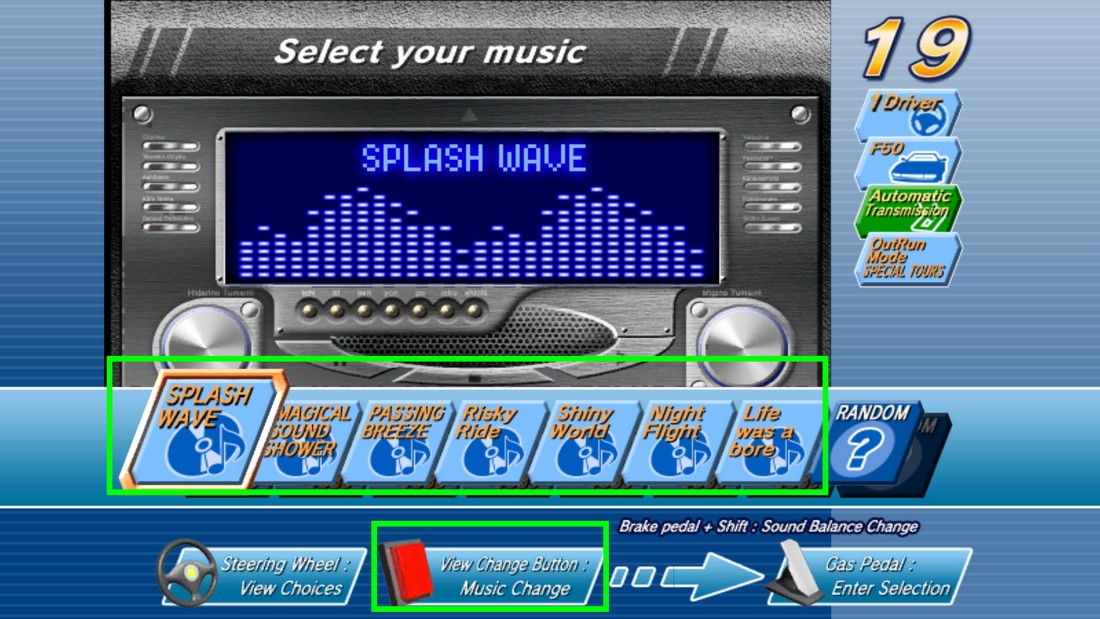
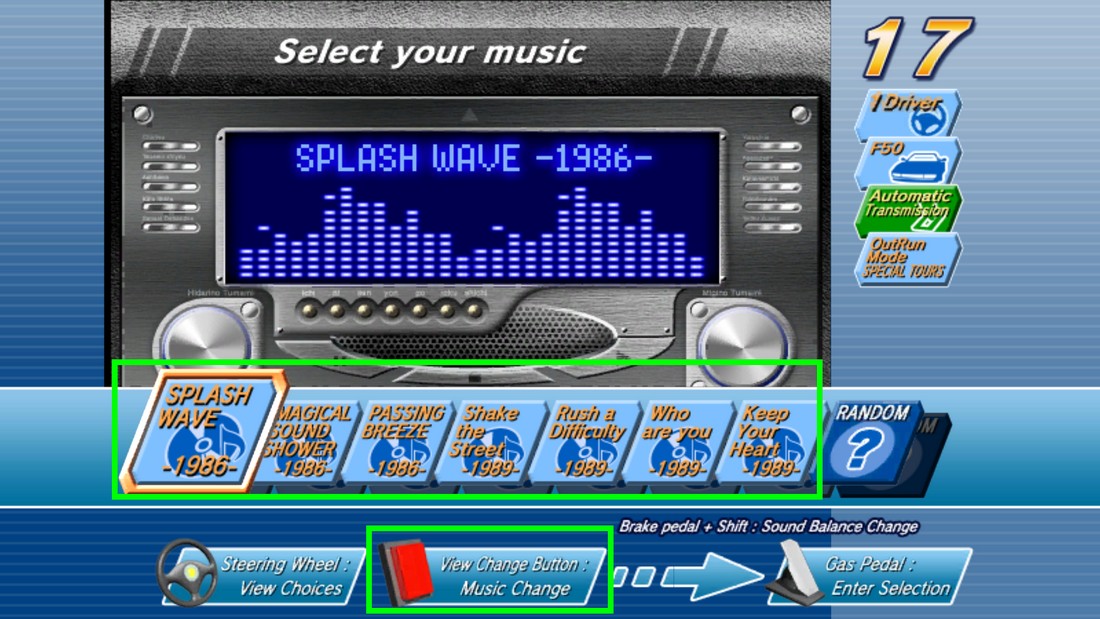
And we will replace them all, but you can replace only a few of them if you want of course.
2 - Convert them in WAV format
Because you need to use the ADX file format from Criware, you need first to convert the file format of your tracks in .WAV because the converter I propose to you can only convert from WAV to ADX. Maybe you can find another converter but I use this one and I know it works perfectly.
There are many ways to do that, you can use Audacity, VLC mediaplayer and a lot of others. I let you look on the web but for example :
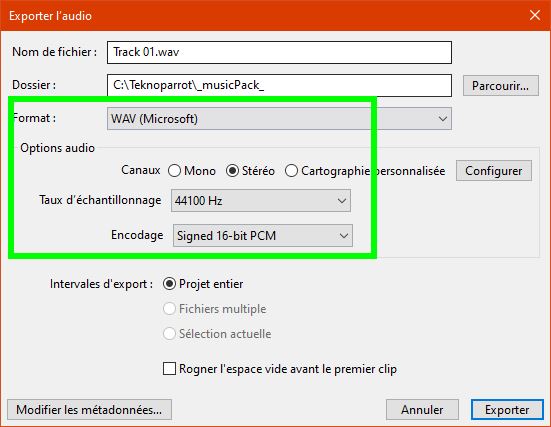
- On Audacity, just open your file and export it in the WAV format.
- On VLC, you have to click on CONVERT/SAVE > Add your files > Select the right audio codec render and validate (little bit more tricky)
When exporting the file in WAV in Audacity, please respect this configuration
So now you have your 14 tracks in wav format in your folder
3 - Optional : create an extract of each
If you notice, when you are selecting your song in OutRun, the musics did not start from the beginning. It's because it use another file which is an extract, usually the most caracteristic part of the song, so you can quickly know which song it is.
TIPS : you can open these ADX files with VLC.
Here is the list of the files in the folder C:\Teknoparrot\roms\OutRun 2 SP SDX (ElfLoader 2)\or2g\disk0\Jennifer\data\
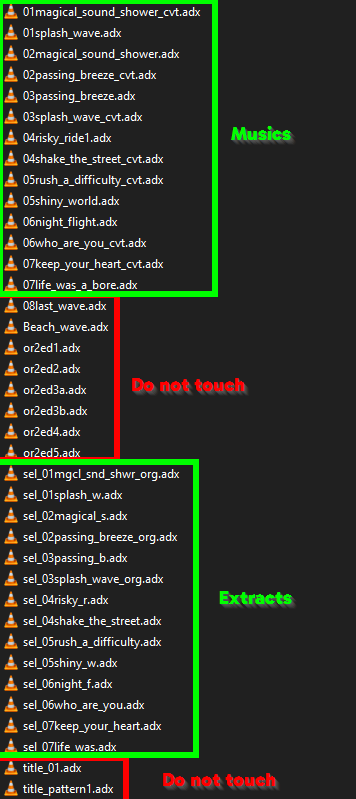
You can make these extract using Audacity saving in WAV format. Make it ONE MINUTE long max, more is not necessary beacause .... you don't have one minute to choose your song in OutRun :D
If you don't know how to manipulate songs in Audacity, it's not really a problem, you can skip this part and we will use the track as the extract.
But if you know how to do that, make an extract for each of your song, it's so much better when you choose the music in the game ;)
So at the end, you have 14 tracks and 14 extracts so 28 WAV files or 14 tracks in WAV format if you didn't make any extract (we will duplicate them later)
4 - Optional : make your tracks longer (5 min each)
A course in OutRun 2 is about 5 min long from start to arrival. The best way to enjoy your music track is that the lenght of it is minimum 5 minutes long. But it's rarely the case, depending of what kind of music you like.
More than 5min30s is not necessary beacause the race will be over or you will have lost. EXCEPT if you run on 15 courses mode, so it's more about 3*5 minutes so about 15 minutes long. Making a track 15 minutes long can be tricky or just a non sens so let this appart.
As previously, if you don't know how to manipulate sound with Audacity, it's not a problem, the track will repeat automaticly in the game.
But if you want a continuous music, you will have to arrange that. I will not explain that here, you can find that the web, it's not so hard to do.
So, here, you have in your folder :
- 14 tracks more than 5 minutes long and 14 extracts max 1 minute long all in WAV format
- or only your 14 original tracks in WAV format
5 - Convert each one in ADX file format
Download the little program adxencd.zip which contain the adxencd.exe file that you will put in your folder where your WAV tracks are. So in the full tuto, you will have something like this
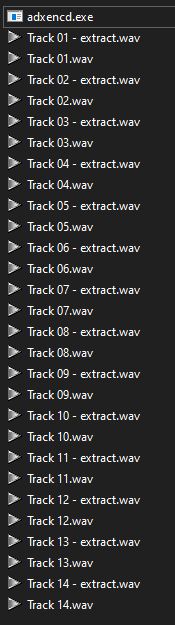
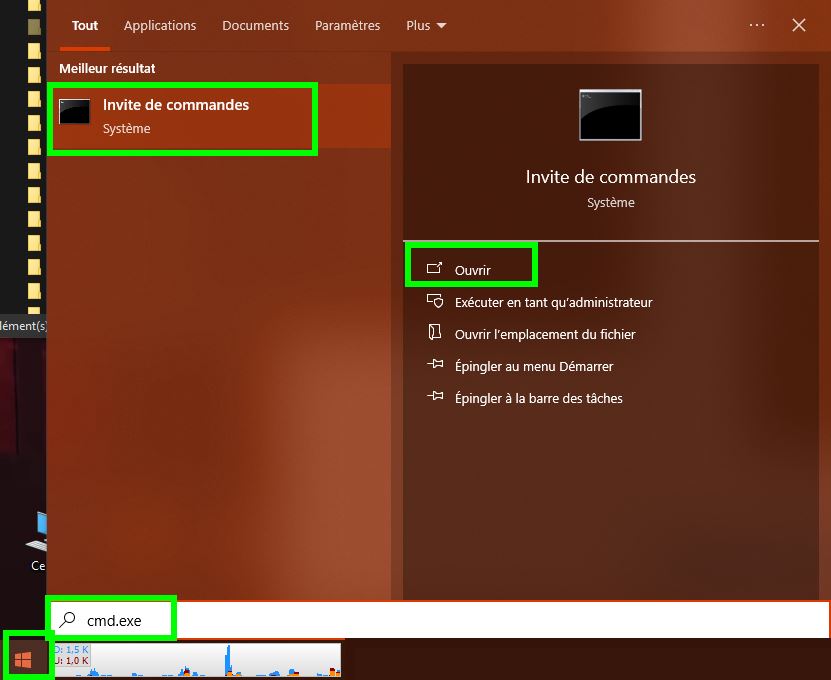
Now we will convert WAV files into ADX files. Open a command line by typing cmd.exe in your Windows start menu and open it.
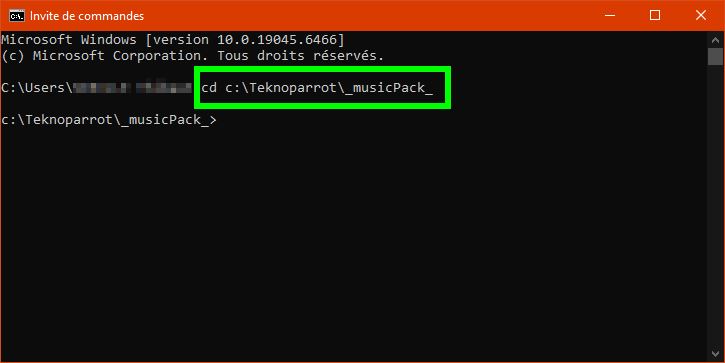
In this case I created a subfolder called _musicPack_ in the Teknoparrt's folder where I put all my music files so I have to type :
- cd C:\Teknoparrot\_musicPack_ and press ENTER
- If your files are not here, just go where they are with adxencd.exe in it.
Now we will have to encode in ADX format EACH WAV file. Example :
- adxencd.exe "Track 01.wav" "Track 01.adx" and press ENTER
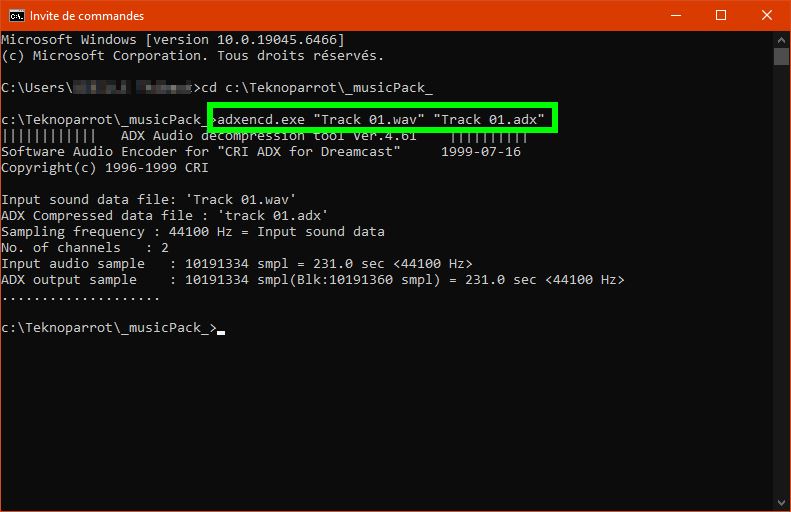
Perfect, you have your first ADX file !
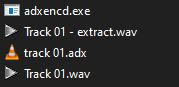
Now do the same for each files so 14 or 28 times depending of what you have ton convert.
TIPS : when you type adxencd.exe " press TAB repeteadly after the " on your keyboard, it will display the files in your folder and fill it for you, you will save half of your lifetime in this operation ;)
6 - Rename the files correctly
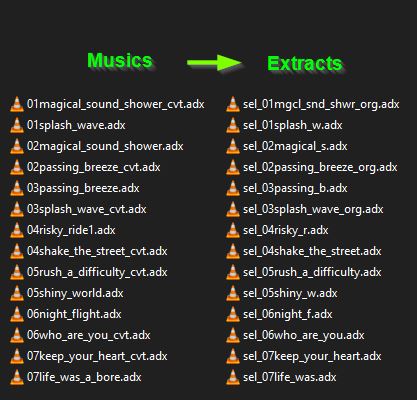
Now you have to name correctly all your ADX file so the game can use them. I don't explain everything in details but the thing to know is, of course, to have a match between the name of the song and the name of the extract.
Here is the tips for you, 2 colomns, the first with the name of the full track in front of the name of the extract of this song. Name everything following this and you will be good.
For those who don't have extract, now it's time to duplicate (copy > paste) your 14 ADX songs so you can rename the same way.
7 - Switch from pack to pack
Now everything is done, you made your music pack ! You just have to replace the files in the good folder of the game.
C:\Teknoparrot\roms\OutRun 2 SP SDX (ElfLoader 2)\or2g\disk0\Jennifer\data\
8 - Bonus trick
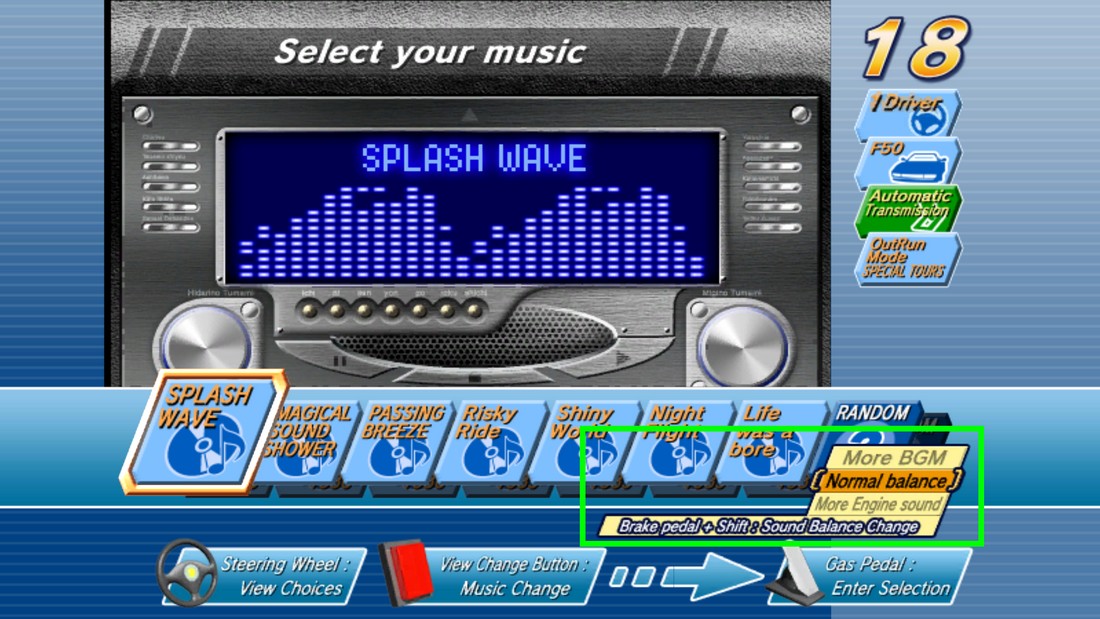
Before validating your song, by pressing the BRAKE PEDAL you can choose if you want more MUSIC (BGM), BALANCE or more ENGINE SOUND. Hahaha, you did not see that coming right ? Yes this game is crazy ...
CONGRATULATIONS, you can do your own playlists now !
|